
Managing team schedules in Crossbar
Instructions
Leagues run in Crossbar
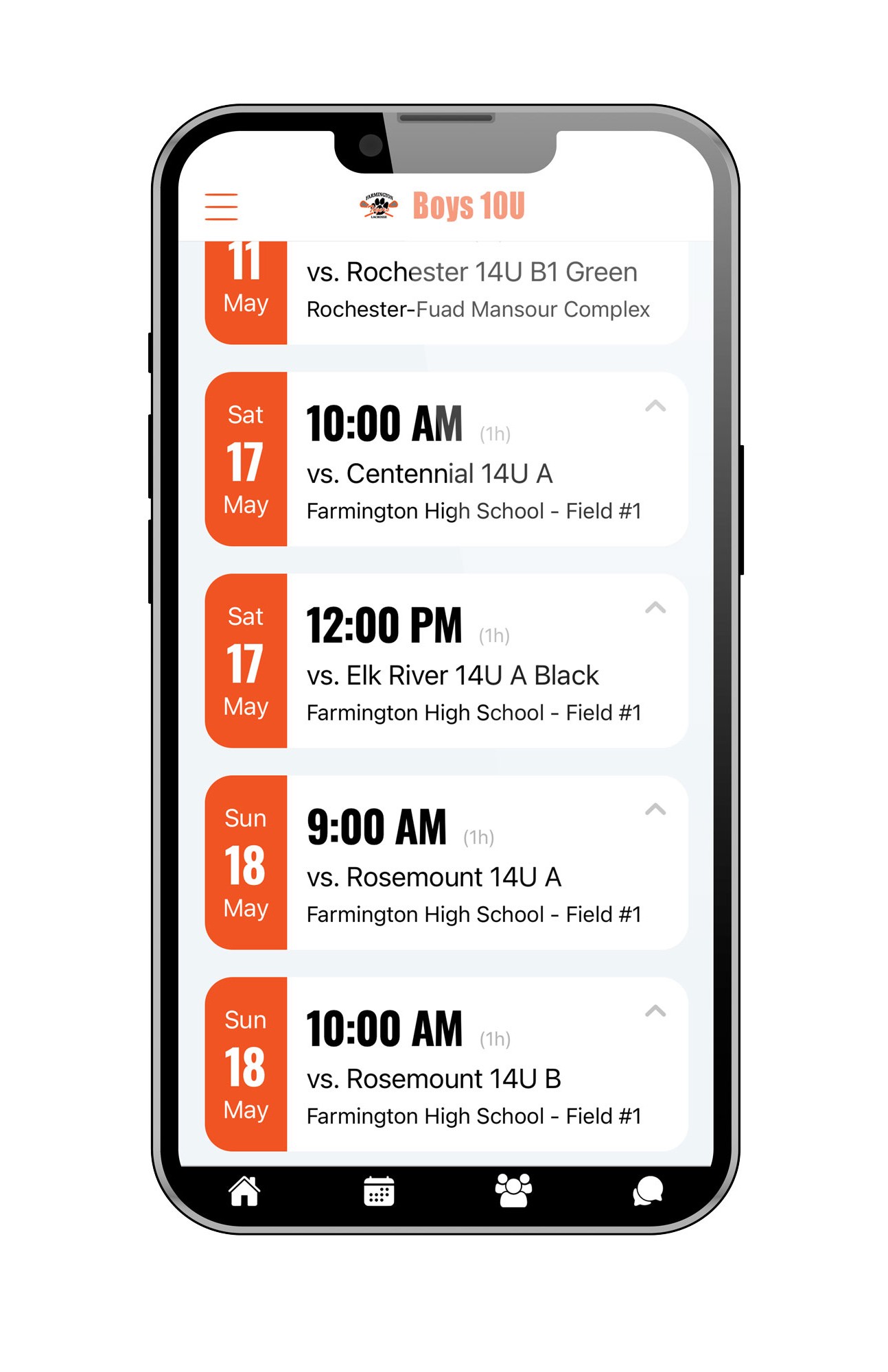
One of the biggest advantages of using Crossbar for league play is how streamlined scheduling becomes for Team Managers. Since FYLA and YLM operate within Crossbar, regular season league games are typically added directly by the league and automatically sync to your team schedule. That means less manual entry, fewer scheduling errors and real-time updates when changes are made.
Leagues not run in Crossbar
If the league is not using Crossbar, Team Managers are responsible for adding and maintaining team game schedules.
- Go to farmingtonlacrosse.org
- Make sure you're signed into your Crossbar account. As Team Manager, you should be given special Manager privileges. If you don't have this access yes, please email the FYLA webmaster.
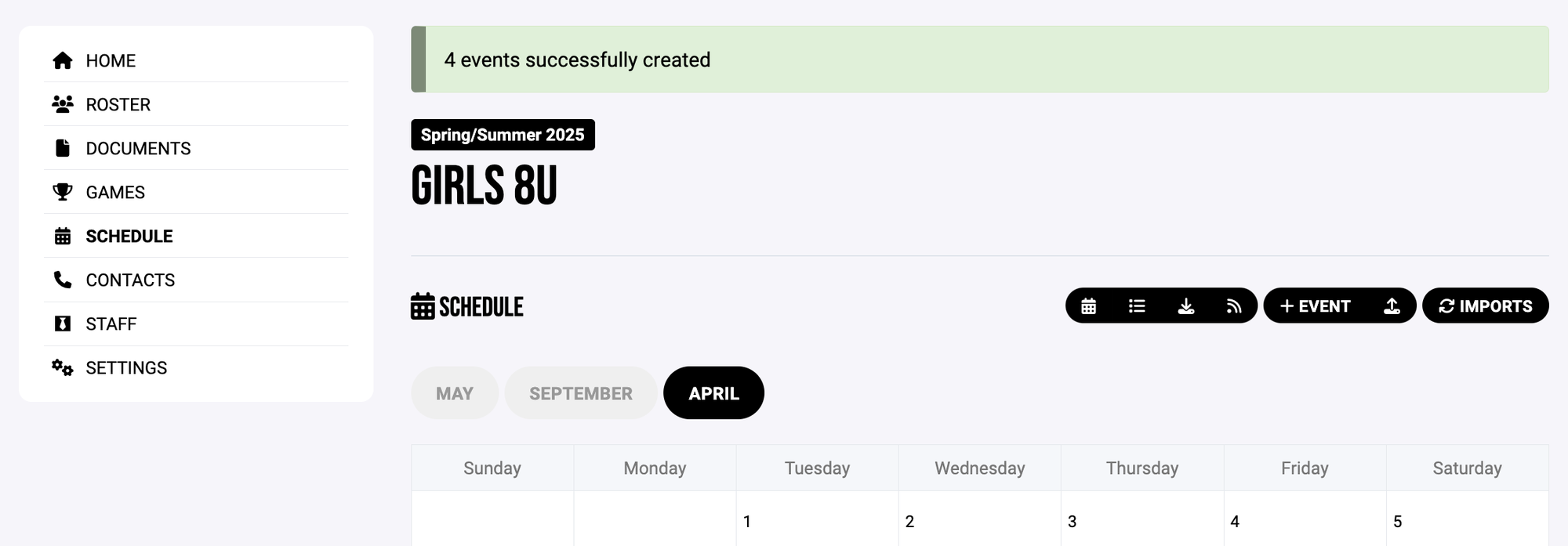
- Navigate to the Schedule tab of your team page on the FYLA website.
- You can manually add games or upload your schedule file (.xls or .xlsx file) to this page.
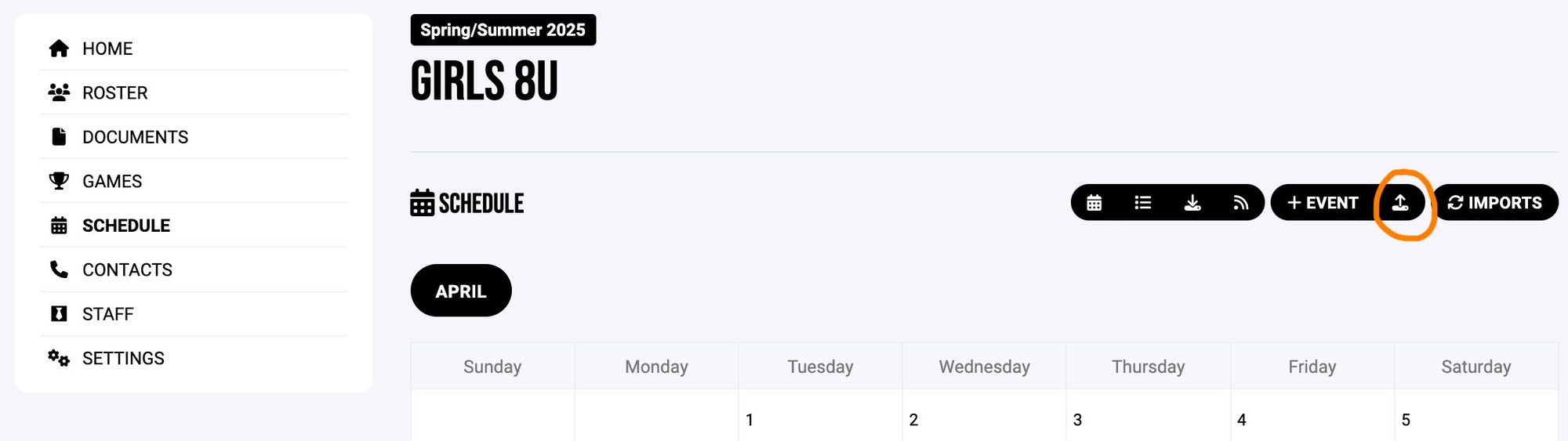
Creating the schedule file using the Crossbar template
Unfortunately, Tourney Machine doesn't provide an iCal file, so we need to manually create the schedule using the Crossbar template, based off the schedule posted on tourneymachine.com. You can download the Crossbar template on this page.
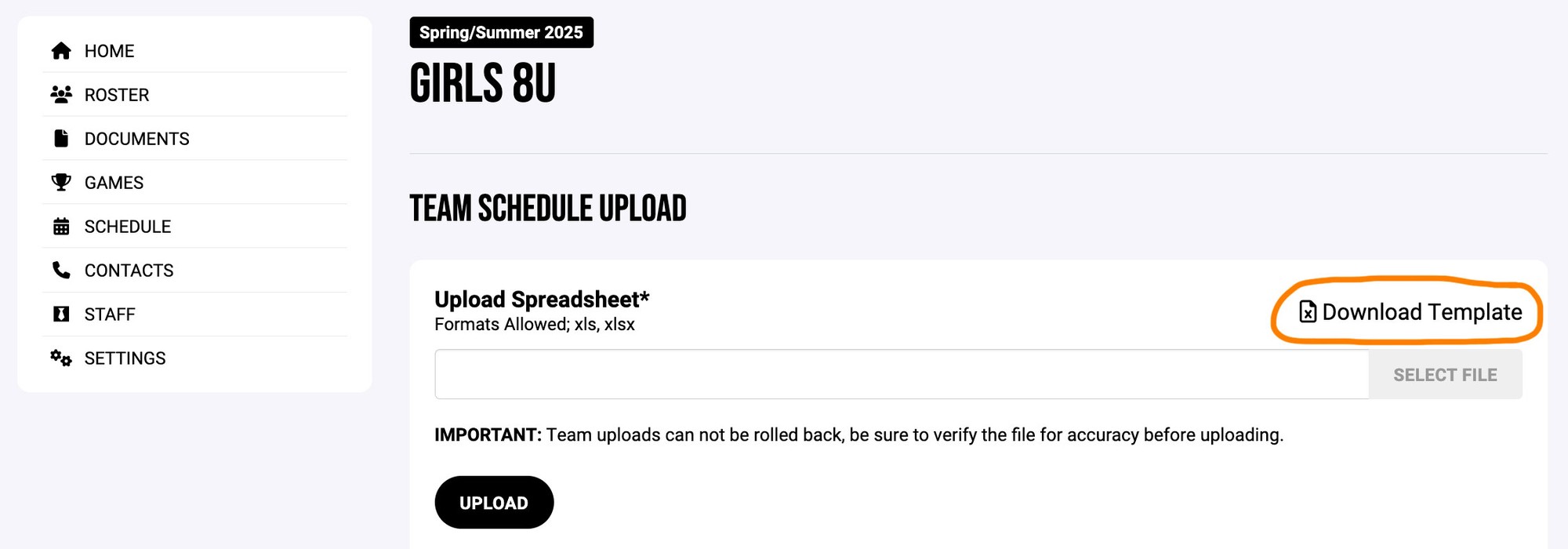
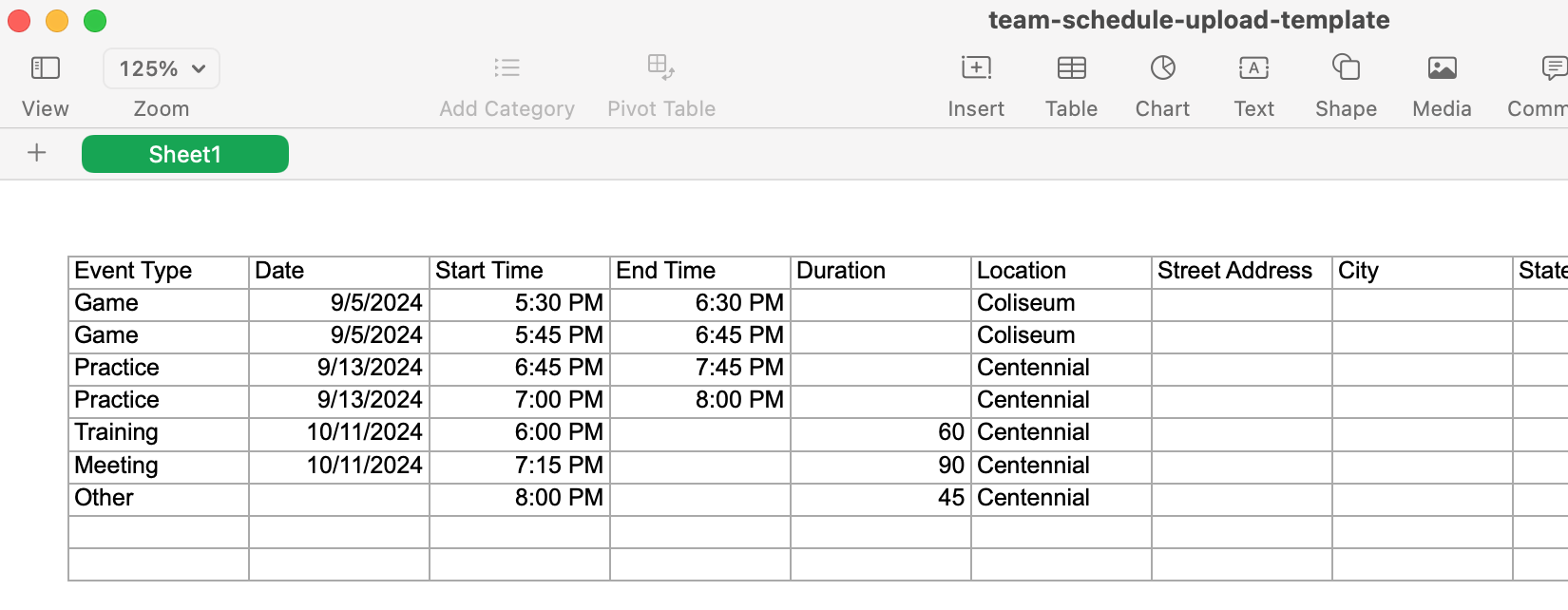
Once you have the template downloaded, you will begin to fill in your team's schedule info.
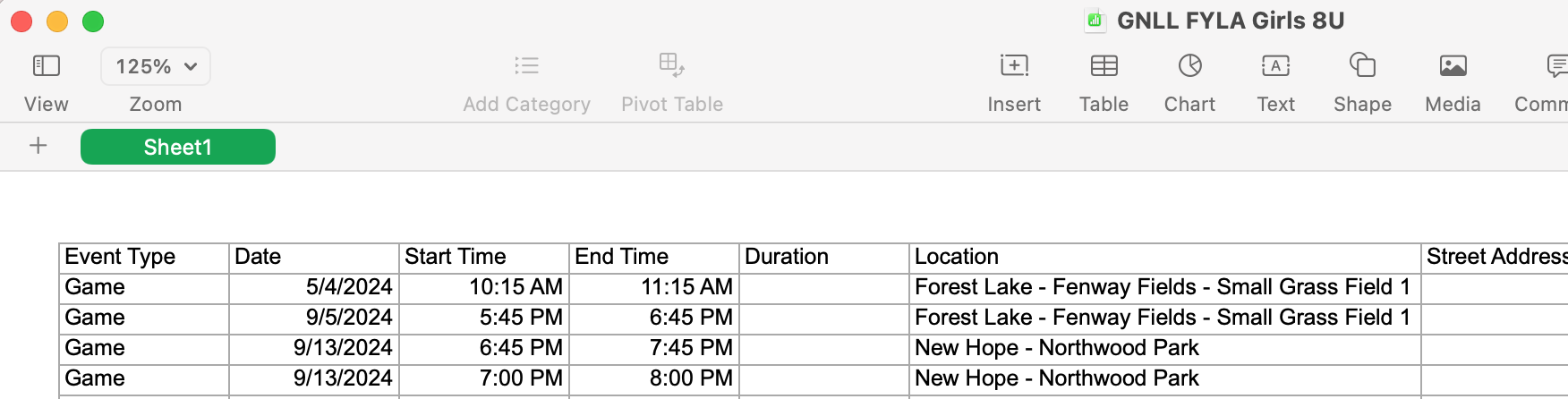
Once complete, you'll upload the file. These items will now appear in your schedule and users will be notified (if they have their notifications turned on).
Questions?
Visit the Crossbar website for assistance. They have a great chat feature that's available during business hours.